
Settings and appearance#
Open Settings from navigation to adjust appearance, notifications, payments, or your account. Search settings by a control or theme name to find it across all groups. Clear search or Escape returns to the selected group.
Appearance#
Under Settings → Appearance → Color theme, choose Default, Rosé Pine, Carbonfox, or Catppuccin. Each offers System, Light, and Dark appearance. System follows changes to your device's appearance while Roost is open.
Selecting a theme previews it across the app, including dialogs and dashboard charts. Choose Save theme to keep it in this browser, or Cancel preview to restore the saved choice. Leaving Settings or reloading also discards an unsaved preview. Theme preferences are per browser, not shared across devices. See Custom color themes for palette details.
Response style offers Messages for chat bubbles or Codex for open, formatted responses and tool activity. Choose Codex to enable Show activity details for expandable inputs, outputs, and available thinking summaries. These display preferences do not change the model or its permissions.
Enable Dashboards here when you want agents to maintain saved trackers and charts. Unlike appearance preferences, this setting applies to the installation and all its devices. Dashboards explains saved data and refreshes.
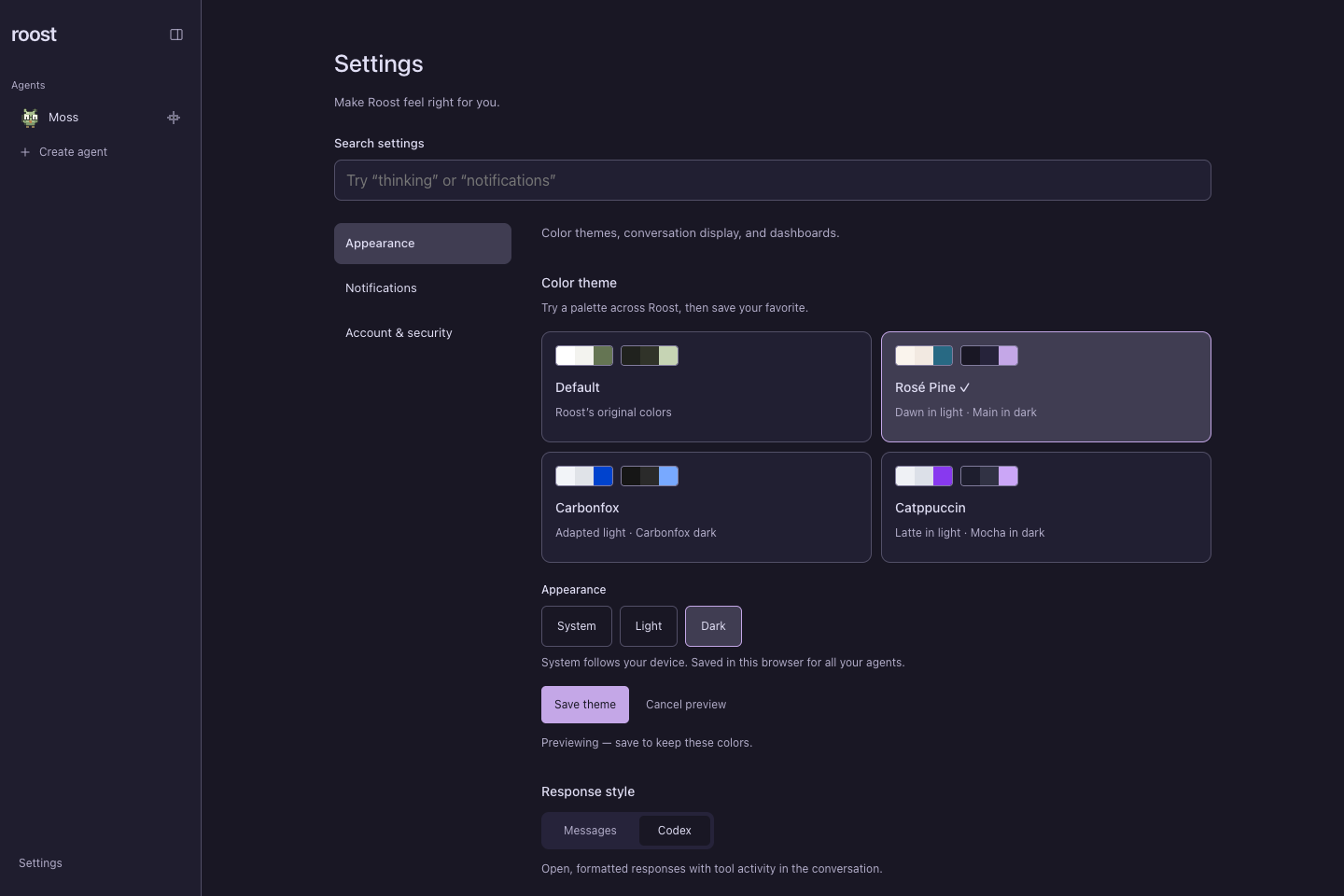
Preview a palette before saving it to this browser. Real Roost interface with fictional sample data. Select the image for full size.
Notifications#
Settings → Notifications contains the installation's notification switches and this browser's push subscription. Enable each device separately. You can choose turn completions, agent updates, and requests needing attention independently. See Push notifications.
Payments#
Use Settings → Payments to connect the owner's Link wallet, review requests from all agents, and refresh purchase status. The native iPhone app offers the same shared wallet and purchase history. Each purchase requires approval in Link for its merchant and final total. See Payments with Link for setup, supported purchases, and recovery.
Account and security#
Use Settings → Account & security → Connect Codex to connect the account agents use. If native Roost login is enabled, this group also provides Manage passkeys and signed-in sessions. Roost login and Codex login serve different purposes; see Passkey login.
To change an agent's identity, model, soul, memory, coding configuration, or schedules, open that agent's settings from its header. These controls stay with the owning agent.